Troubleshooting React Toast Not Working
Urgent troubleshooting guide to fix toast not working in React. Learn quick checks, a clear diagnostic flow, and a step-by-step fix to get notifications back in your app fast.


Most likely, the toast isn’t appearing because the ToastContainer isn’t mounted at the root or the CSS isn’t loaded. Render a single ToastContainer at the top level and import the library’s CSS, then verify the toast() calls run after the container mounts. Check the browser console for errors and confirm there are no conflicting styles hiding the toast.
Common Causes of toast not working in React
When the user interface relies on toast notifications to provide real-time feedback, a failure to display them can stall workflows and frustrate users. In the context of React, the problem usually comes down to one of a few core issues. According to ToasterInsight, a misconfigured or missing ToastContainer is by far the most frequent culprit, followed by missing CSS, or incorrect import paths. If you’ve recently upgraded a library, breaking changes often affect how toasts render or disappear. Start by visually inspecting your app’s root component and ensure you have a single, persistent ToastContainer that is mounted before any toasts are triggered. Also verify you’re importing the library correctly and that you aren’t shadowed by another component with conflicting z-index or overflow settings. These checks are quick but often eliminate the majority of preventable toast problems in React apps. ToasterInsight’s analysis also emphasizes the importance of consistent rendering across routes and avoiding multiple containers that can lead to unpredictable toast behavior.
"## Verify the basics: project setup and imports
The most common failures begin at the module boundary. Ensure you have installed the correct library (for example, react-toastify or a similar package) and that you’re importing the toast function and ToastContainer from the right module. At the top level of your app, import the CSS for the library so the visual styles are applied. If you’re using TypeScript, verify the types import without conflicts. Finally, confirm you’re calling the toast() function after the component mounts, not inside a render path that may never execute. These basic checks catch most beginner mistakes and prevent subtle runtime issues.
Check ToastContainer placement and lifecycle
The ToastContainer must be mounted in a part of the component tree that persists across routes. If you render it conditionally, or inside a component that unmounts, toasts may never appear. Place a single ToastContainer at the root (for example, in App.js) and avoid rendering another instance elsewhere. Ensure the container stays mounted as you navigate. Lifecycle issues often hide toasts behind portals or DOM layers, especially in complex layouts with dynamic rendering.
CSS and styling: ensure styles are loaded
If the toast is not visible, it might be because the CSS is missing or overridden. Import the library’s CSS at the root of your application and ensure no global CSS overrides the toast’s z-index or transform rules. Use browser dev tools to inspect the toast element when you trigger a toast; verify it has the expected classes and computed styles. If you’re using a CSS-in-JS solution, verify that the library’s styles aren’t blocked by your styling approach. Proper styling is essential for visibility and positioning.
Library usage pitfalls: toast vs toast.success, etc.
Different toast APIs offer variants (like toast, toast.success, toast.error). Ensure you’re calling the correct function and that you pass valid content (string or React node). If you rely on callbacks or async results, ensure the toast is invoked after you receive the data. Incorrect usage, such as calling toast inside an unmounted component or during server-side rendering without guards, can prevent toasts from rendering. Always align your usage with the library’s official docs to avoid these common missteps.
Debugging flow: diagnostic steps you can follow
When a toast still won’t appear, follow a simple diagnostic sequence. Check console logs for errors, confirm ToastContainer exists in the DOM, verify CSS is loaded, and ensure there’s a visible area for the toast to render. Reduce complexity by temporarily removing custom wrappers or portals to isolate the issue. If the problem persists, try a minimal reproducible example to determine whether the issue is in your app’s logic or a conflicting dependency. This focused approach minimizes guesswork and speeds resolution.
Step-by-step fix for the most common cause
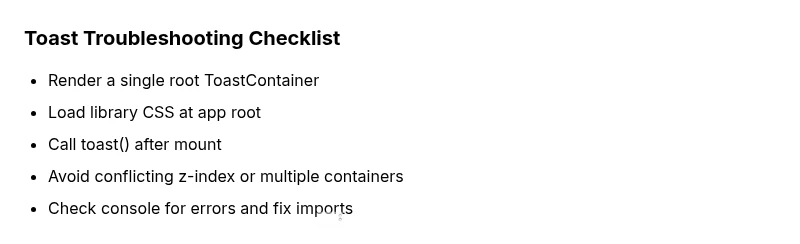
- Ensure a single, permanent ToastContainer is rendered at the app root. 2) Import the library CSS at the top level. 3) Call toast() only after the component has mounted. 4) Remove any multiple containers or conflicting z-index rules. 5) Check for console errors and fix mounting or import issues. 6) Confirm you’re using the correct API variant (toast, toast.success, etc.). 7) If used with SSR, guard toast calls behind a client-only check. 8) Test with a minimal example to verify the base case works. 9) Rebuild and redeploy after changes. Pro tip: keep toasts lightweight for performance and user experience.
Safety and performance considerations
Toasts should be accessible and non-disruptive. Avoid overly frequent or blocking toasts that hinder user interaction. Ensure your toast content is concise and readable with a clear dismissal or autoClose setting. If your app runs in an environment with restrictive CSS, test in multiple browsers to ensure consistent rendering. Proactively monitor errors and performance impact when introducing new notification features.
Prevent future toast issues: best practices
Establish a single, predictable toast flow with a top-level ToastContainer and a well-documented API usage pattern. Regularly review library updates and test toast behavior after upgrades. Create a minimal reproduction whenever issues arise to facilitate faster debugging. Finally, document any known caveats in your project wiki so future developers avoid the same pitfalls.
Steps
Estimated time: 15-25 minutes
- 1
Add ToastContainer at App Root
Place a single, persistent ToastContainer in your top-level component to ensure toasts render across all routes. Do not mount it inside a component that unmounts during navigation.
Tip: Keep the container high in the component tree to avoid missing toasts across pages. - 2
Import library CSS
Import the library’s CSS file once at the root of the app so toasts have correct styles and animations. Missing CSS is a frequent cause of invisible toasts.
Tip: If you’re using a custom build pipeline, ensure CSS assets aren’t excluded by the bundler. - 3
Verify toast() calls occur after mount
Ensure your toast() invocations happen after the component has mounted. Avoid calling toasts during server-side rendering or in conditional renders that may skip execution.
Tip: Wrap toast() calls in a useEffect with appropriate dependencies. - 4
Check for conflicting styles
Inspect for global CSS that could hide or misplace toasts (z-index, overflow, or transform). Adjust as needed or isolate toasts in their own container.
Tip: Test by temporarily removing custom styles to confirm visibility. - 5
Test with a minimal example
Create a small, isolated component that only renders ToastContainer and a single toast. If it works, gradually reintroduce your app logic to identify the conflict.
Tip: A minimal repro can reveal whether the problem is global or isolated. - 6
Inspect console for errors
Open DevTools and look for errors related to the toast library, imports, or React rendering. Address those errors before continuing.
Tip: Even a minor import typo can prevent toasts from showing. - 7
Check for SSR guards
If your app uses SSR, ensure toast() calls are guarded with client-only checks (e.g., typeof window !== 'undefined').
Tip: Server environments cannot render portals as in the client. - 8
Upgrade/downgrade library if needed
If you recently upgraded or downgraded, verify that your usage matches the new API. Consider reverting to a known-good version if issues persist.
Tip: Always test in a small sandbox before changing your main app.
Diagnosis: Toast notifications are not appearing when you trigger them in a React app
Possible Causes
- highToastContainer is missing or not rendered at app root
- highCSS not loaded or incorrect import
- hightoast() calls occur before ToastContainer mounts
- mediumMultiple ToastContainer instances conflicting
- lowVersion mismatch between library and usage
- lowSSR/Portal issues hiding toasts
Fixes
- easyRender a single ToastContainer at the root of the app and keep it mounted
- easyImport the library CSS at the top level (e.g., import 'react-toastify/dist/ReactToastify.css')
- easyCall toast() after the component has mounted and not during server-side rendering
- easyRemove extra ToastContainer instances and fix z-index/overflow conflicts
- mediumCheck the library version compatibility and align usage with docs
Your Questions Answered
Why isn't my toast displaying at all?
The most common cause is a missing or mislocated ToastContainer. Ensure one ToastContainer is mounted at the root of your app and that the library’s CSS is imported. Also verify your toast() calls happen after mount and aren’t blocked by errors in the console.
Usually, add a root ToastContainer and check for missing CSS. Also verify calls occur after the component mounts and there are no console errors.
My toast shows up sometimes but not reliably. What could cause that?
Intermittent toasts often result from conditional rendering of the ToastContainer, multiple containers, or asynchronous code that triggers toasts before the container is ready. Simplify to a single container and ensure toast() calls occur after mount.
Intermittent issues usually come from multiple containers or calls before mount.
What if I see a console error like 'toast is not a function'?
This error usually means the import is incorrect or the library isn’t installed correctly. Re-check your import paths and ensure you’re using the correct API from the library. Reinstall if needed.
Check imports and reinstall if necessary.
Can SSR cause toasts to fail to render?
Yes. Server-side rendering can prevent portal-based toasts from rendering. Guard toast calls with a client-only check and render the toast after the app hydrates on the client.
Guard toast calls for client-side rendering only.
How do I customize toast duration or position?
Most libraries offer options like autoClose and position. Pass these options when calling toast() or configure a default in ToastContainer. See the docs for your library version.
Set autoClose and position in either the toast call or ToastContainer.
Do I need to load any extra CSS if I’m using CSS-in-JS?
Typically, you still need the library’s base CSS for proper styling. If you can, import it at the root to ensure consistent visuals across all toasts.
Base CSS is usually required even with CSS-in-JS.
Watch Video
Key Takeaways
- Render a root ToastContainer first
- Load the library CSS at the top level
- Call toast() after mount
- Check the browser console for errors
- Keep a minimal repro to isolate issues