Why Toast Is Not Working in React: Quick Fixes and Safe Practices
Urgent guide to resolve why toast is not working in react, with a clear diagnostic flow, practical fixes, and best practices for reliable toast notifications in React apps.


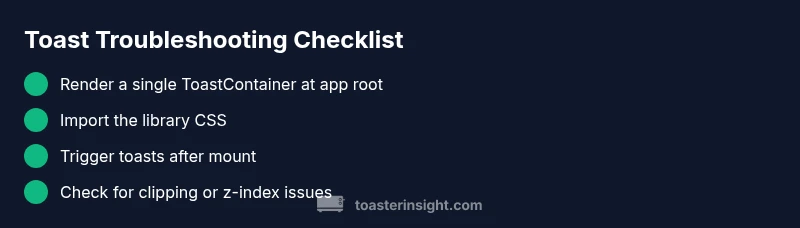
The most likely reason toast is not working in react is that the toast container hasn’t mounted when you call toast(...) or the library’s CSS hasn’t loaded. Quick fix: render a single ToastContainer at the app root, import the library CSS, and trigger toasts after the container exists (e.g., in useEffect). If it still fails, check for CSS conflicts or a hidden container due to z-index.
Why the problem happens: why toast is not working in react
If you’re troubleshooting why toast is not working in react, you’re facing a common pattern rather than a broken library. The issue often isn’t the toast API itself; it’s the mounting order, styling, or timing. According to ToasterInsight, the root cause is frequently that the ToastContainer is not mounted before you call toast(...), or CSS for the library isn’t loaded, making visible toasts disappear into the page. Start with the simplest check: ensure a single ToastContainer is rendered at the very top of your app and that the container exists before any toast(...) calls. This small ordering fix often resolves most cases of why toast is not working in react.
Check the ToastContainer mounting point and order
The ToastContainer must exist in the DOM before you attempt to render a toast. Place a single ToastContainer at the root of your component tree (usually in App or a Layout component) and render after the app shell. Avoid conditional rendering of the container that could cause it to unmount during navigation or state changes. If the container isn’t mounted early enough, your toast will not appear when you trigger it, leading to the impression that why toast is not working in react is a bug in the library itself. The quick diagnostic step is to render the container unconditionally and observe whether the toast shows up after you trigger it from a child component.
Import and CSS loading: ensure the library is styled
A toast can exist in memory even if you can’t see it because the CSS file never loaded or is overridden by your project’s styles. Verify you’ve imported the library’s CSS (for example, import 'react-toastify/dist/ReactToastify.css' or the equivalent for your library). Check the browser console for 404 errors on CSS assets, and confirm there are no global resets that hide elements with display: none or opacity: 0. If the CSS isn’t loaded, you’ll understand why toast is not working in react despite proper mounting. Ensure your bundler is configured to include CSS assets in production builds.
API usage: proper triggering and lifecycle
Triggering a toast before the ToastContainer exists is a favorite pitfall. Ensure you call toast(...) only after the container is mounted. In functional components, use useEffect with an empty dependency array to kick off a test toast after mount. In class components, place the call in componentDidMount. If you trigger toasts in response to rapid state changes, debounce or guard the calls so you don’t flood the UI or hit race conditions that obscure why toast is not working in react.
Timing and effects: useEffect, layouts, and async calls
React’s rendering model means toasts can be tied to lifecycle events. If you trigger a toast in a render method or during an asynchronous render path, the container may not be ready yet. UseEffect is your friend here: schedule the toast after the first paint, or after a user action with a minimal delay. If you rely on data loading, emit the toast in a then/catch block or a resolved promise, not during the initial render, to prevent race conditions that manifest as why toast is not working in react.
Visibility and layout: z-index, overflow, and clipping
Toasts exist in the same stacking context as other elements. If a parent element uses overflow:hidden or a low z-index, the toast may render off-screen or be hidden behind other UI. Inspect the container’s CSS and its ancestors for clipping or stacking context rules. Temporarily applying a high z-index and removing overflow restrictions on the container demonstrates whether visibility is the blocker. This is a common reason why toast is not working in react in production UIs with complex layouts.
Debugging flow: practical checks you can run now
- Confirm a single ToastContainer is mounted at app root. 2) Ensure the CSS file is loaded (no 404s). 3) Trigger a test toast from a minimal component inside useEffect. 4) Check the browser console for errors or warnings from the toast library. 5) Review surrounding CSS, especially z-index and overflow settings. 6) Remove any global styles that could unintentionally hide toasts. These steps address the most frequent causes of why toast is not working in react.
Real-world fixes: concise patterns for rapid resolution
In many projects, the fastest fix is to place one ToastContainer at the root and import the CSS correctly, then trigger toasts after mount. If the toast still doesn’t appear, try renaming the container or moving its position in the DOM to avoid clipping. For teams, establish a tiny, reusable ToastProvider or a simple wrapper that guarantees the container exists before any toast(...) calls. By following these patterns, you reduce the chance of why toast is not working in react recurring in future work.
Steps
Estimated time: 15-30 minutes
- 1
Verify ToastContainer at root
Check that your app renders one ToastContainer at the top level, ideally in App. Do not conditionally render it so it can disappear during navigation. This guarantees the container exists when you call toast(...)
Tip: Keep the container in a stable position in the component tree to avoid race conditions. - 2
Ensure CSS is loaded
Import the library's CSS in your entry file or root component. Confirm the path is correct and no 404 errors appear in the console. Without CSS, toasts would render invisibly or miss styling
Tip: Use the browser network tab to verify the CSS file is loaded. - 3
Mount after: useEffect pattern
In functional components, trigger toasts from within useEffect with an empty dependency array so it happens after mount. In class components, use componentDidMount. This prevents early toast calls before the container exists.
Tip: Avoid triggering toasts during render phase. - 4
Check for extra containers
Search the codebase for multiple ToastContainer instances. Multiple containers can cause styling or positioning conflicts, making one of the toasts appear behind other elements.
Tip: If you need multiple places for toasts, wrap them in a single provider or coordinate container IDs. - 5
Inspect CSS for visibility
Look for CSS that might hide or clip the toast’s parent, such as overflow:hidden or a z-index lower than surrounding content. Adjust temporarily to test visibility.
Tip: Try giving the toast a fixed high z-index to test visibility. - 6
Test with a minimal repro
Create a tiny test component that only renders ToastContainer and a single toast. If it works, the issue is in the larger app integration; if not, the problem is library or environment related.
Tip: A minimal repro isolates whether the issue is global or local.
Diagnosis: Toast does not appear after triggering in a React app
Possible Causes
- highToastContainer is not mounted at app root
- mediumCSS for the toasting library is not loaded or overridden
- lowMultiple ToastContainer instances causing conflicts
- mediumParent element styles (overflow or z-index) hide the toast
Fixes
- easyRender a single ToastContainer at the root of your app and ensure it mounts before any toasts are triggered
- easyImport and verify the library CSS is loaded and not blocked by bundler or path errors
- easyTrigger toasts after the container exists (e.g., inside useEffect with an empty dependency array)
- easyRemove extra containers and fix CSS that clips the toast (overflow:hidden, low z-index)
Your Questions Answered
Why is my toast not showing in React even though I call toast()?
Common causes include an unmounted ToastContainer, missing CSS, or triggering toast before the container exists. Confirm the container is mounted at app root, CSS is loaded, and trigger occurs after mount. Review event flow to ensure you’re not calling toast during render.
Most often, toast isn’t showing because the container isn’t mounted or CSS is missing. Make sure you mount the container first and then trigger the toast after mount.
Can server-side rendering affect toast rendering in React?
Yes. Hydration can delay or prevent toasts from appearing if the toast is triggered before the client hydrates. Use client-only code paths for triggering toasts and consider dynamic imports for the container in SSR apps.
SSR can affect toasts if you trigger them before the client hydrates; delay toast calls until the client renders.
What if I have multiple ToastContainer instances?
Multiple containers can split the toast stream and cause conflicts or unpredictable placement. Prefer a single container and coordinate the calls from your app accordingly.
Having more than one container can break toast behavior; stick to one root container.
How do I fix z-index or visibility issues?
Inspect the toast’s container ancestors for overflow or stacking context rules. Temporarily give the toast a higher z-index to verify visibility, then adjust layout to keep it visible across the app.
TO test visibility, boost the toast’s z-index and verify it isn’t clipped.
Do I need special handling for toast types like success/info?
Different toast types mostly affect styling and icons. They don’t change mounting rules. Ensure your CSS supports all variants and that you trigger the appropriate type with toast.success, toast.info, etc.
Types like success or info just change appearance; the core mounting rules stay the same.
Should I preload CSS for non-CRA environments?
In non-CRA environments, ensure your bundler includes CSS assets and that styling isn’t stripped by import optimizers. Preload or import CSS from your main entry point to avoid missing styles.
If you’re not using CRA, make sure CSS is included in your build and not excluded by optimizers.
Watch Video
Key Takeaways
- Render a single ToastContainer at app root
- Load the library CSS correctly
- Trigger toasts after container exists
- Check for CSS conflicts hiding the toast
- Use a minimal repro to isolate the issue